Lumaktaw sa nilalaman

Naka-off ang opsyonal na analytics, pagre-record ng session, at advertising hangga’t hindi mo tinatanggap. Maaari mong tanggihan ang mga ito at gamitin ang Transglot. Baguhin ang iyong pagpipilian anumang oras sa Mga kagustuhan sa cookie. Patakaran sa Cookie

Lahat ng integrations
spec sheet · code at design

VS Code and Transglot, translations beside your code.

Install the extension, open your configured workspace, and sign in with a project token. See translations beside your source, find missing keys, and push or pull locale files from VS Code.

Source files and locale translations
Direksyon
Source files and locale translations
Plan
Starter pataas
Saklaw
source files, inline JSON translations, diagnostics para sa missing key, at pag-download ng locale
Pagpapatunay
isang Transglot project access token na naka-store sa VS Code SecretStorage
Magsimula
Available on the VS Code Marketplace.

VS

code at design
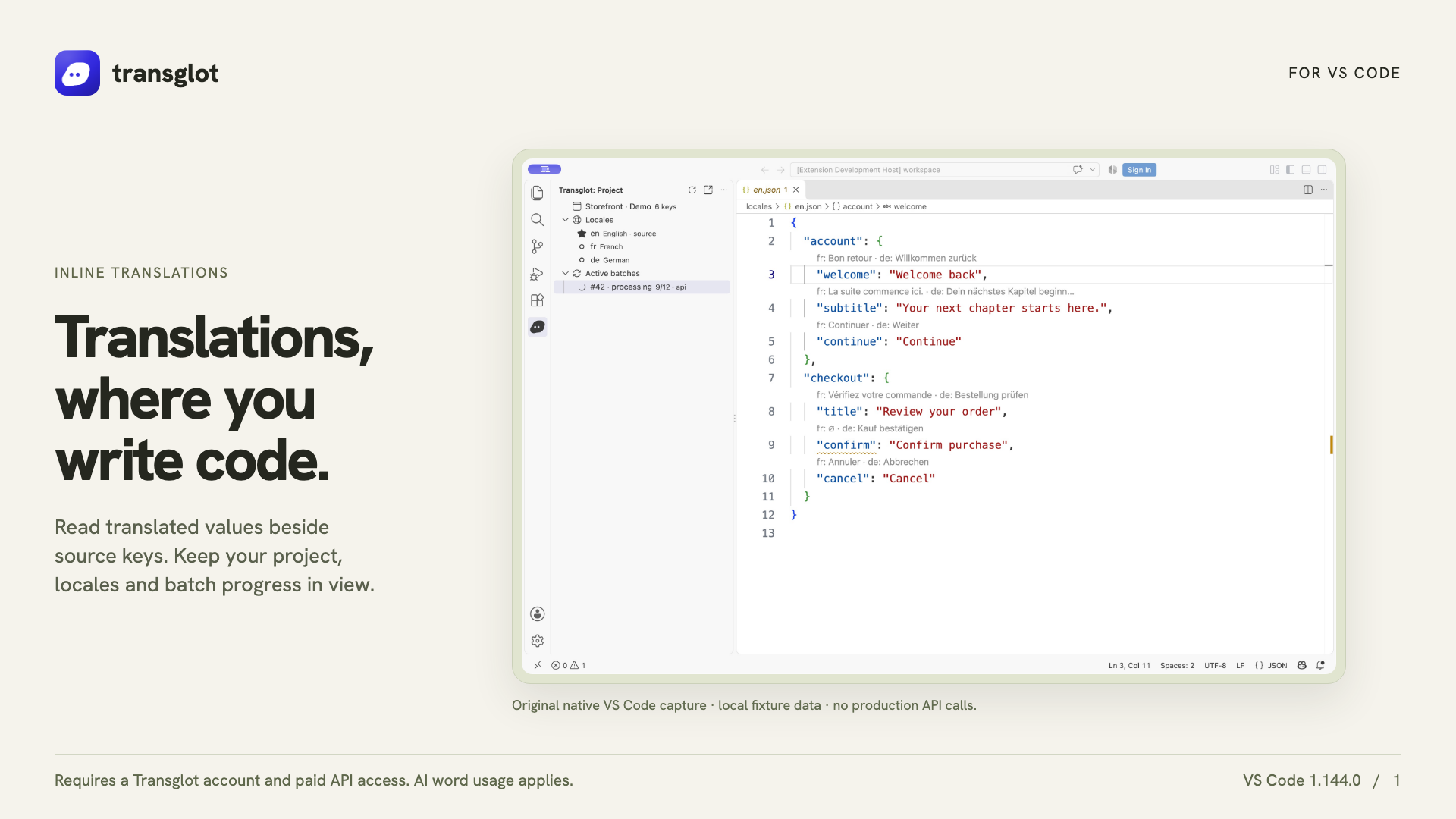
Transglot VS Code extension showing real inline translations in an example project
Native VS Code capture using an example localization project.
ang workflow

Iugnay ang iyong content. Suriin ang bawat wika.

Magkonekta nang isang beses, piliin ang iyong content at mga wika, pagkatapos ay isalin at suriin sa parehong proyekto. Ipakikita ng mga hakbang sa ibaba kung paano ito gumagana sa iyong tool.

  1. Connect your project

    Install Transglot from the Marketplace, then run Transglot: Sign In with your project access token.

    connect
  2. Inspect the source keys

    Open a configured JSON locale file to see CodeLens values, translated hovers and missing-key diagnostics.

    inspect
  3. Update the translations

    Edit a target translation or explicitly start an AI translation batch from the extension.

    isalin
  4. Push and pull the files

    Push source changes and pull translated locale files through the same project used by your CLI and CI.

    deliver
Inspect translations inline, edit a locale value, and pull locale files back into your workspace.
kung ano ang lilipat

Mga bagay na maaari mong isalin at ihatid.

Mag-translate sa tabi ng code na sinusulat mo na. Inspeksyunin ang mga locale value, hanapin ang mga nawawalang translation, at i-push o i-pull mula sa VS Code.
Mga bagay na maaari mong isalin at ihatid.
SurfaceAno ang inaasahan
Pinagmulan at saklaw

source files, inline JSON translations, diagnostics para sa missing key, at pag-download ng locale

Naisaling output

Inspect translations inline, edit a locale value, and pull locale files back into your workspace.

Tandaan

Inline translations and missing-key diagnostics support the JSON-family formats. File push, pull and AI batches support the wider Transglot format catalog.

magkonekta

Iláng hakbang para sa iyong unang koneksyon.

Sundin ang setup ng iyong tool sa ibaba: idagdag ang koneksyon, piliin kung ano ang ise-sync, at subukan ito gamit ang maliit na set ng content. Maaaring magpatuloy sa trabaho ang iyong team gamit ang mga tool na ginagamit na nila.

Kailangan mo

isang Transglot project access token na naka-store sa VS Code SecretStorage.

  • Isang Transglot project na may naka-configure na source at target locales.
  • I-save ang mga credential sa mga setting ng koneksyon upang makapagtuloy ang iyong team nang hindi kinokopya ang mga secret sa pagitan ng mga file.
  • Kinakailangan ng paid Transglot plan ang access sa Hosted API. Ginagamit ng AI translation ang word allowance ng iyong workspace.
  1. Install Transglot from the VS Code Marketplace, or run code --install-extension transglot.transglot.

  2. Open a trusted workspace with a transglot.json configuration for its source files and pull paths.

  3. Run Transglot: Sign In and enter the project token when prompted. The token is stored in SecretStorage, not in workspace settings.

  4. Open a configured locale file. Use the project tree and command palette to inspect, edit, push, translate or pull.

parehong project, higit pang posibilidad

Ikonekta ang natitirang bahagi ng iyong workflow.

Mananatili sa isang project ang iyong mga translation habang lumilipat sa pagitan ng mga tool.

gumagana sa mga ginagamit mo na

41 connector, handa na.

dalhin ang iyong workflow

Ang iyong content, handang para sa bawat locale.

Ikonekta ang iyong mga tool, magsalin kasama ang iyong team, at i-publish ang nasuring content.