Lumaktaw sa nilalaman

Naka-off ang opsyonal na analytics, pagre-record ng session, at advertising hangga’t hindi mo tinatanggap. Maaari mong tanggihan ang mga ito at gamitin ang Transglot. Baguhin ang iyong pagpipilian anumang oras sa Mga kagustuhan sa cookie. Patakaran sa Cookie

Lahat ng integrations
spec sheet · code at design

Figma and Transglot, see every locale in your design.

Install the development plugin and connect your project with a token. Select text to translate, then preview another language in your design without moving copy through spreadsheets.

Text layers → project → design previews
Direksyon
Text layers → project → design previews
Plan
Starter pataas
Saklaw
napiling text layers, Variable modes at mga translated design copy
Pagpapatunay
isang Transglot project access token na beripikado sa plugin
Magsimula
Download the plugin and connect it to your Transglot project.
code at design
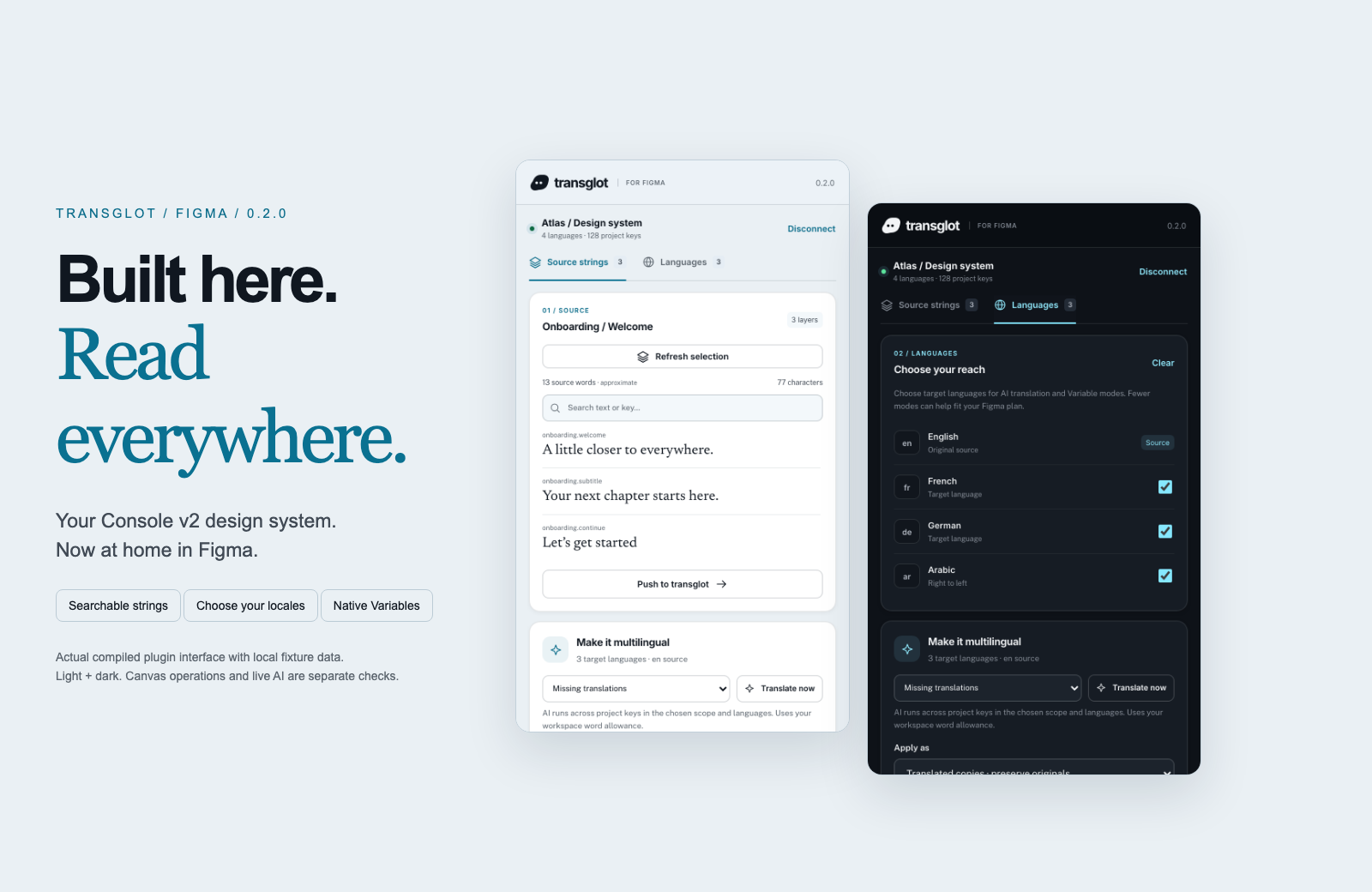
Transglot Figma plugin showing source strings, target languages, and localized design previews
Collect source strings, pull target locales, and inspect translated designs in the Transglot Figma plugin.
ang workflow

Iugnay ang iyong content. Suriin ang bawat wika.

Magkonekta nang isang beses, piliin ang iyong content at mga wika, pagkatapos ay isalin at suriin sa parehong proyekto. Ipakikita ng mga hakbang sa ibaba kung paano ito gumagana sa iyong tool.

  1. Collect the text layers

    Select a frame or text layers and collect the strings you want to localize.

    collect
  2. Push to the project

    Send source text to Transglot with stable keys for the mapped layers.

    push
  3. Translate and pull

    Translate in your project or start a batch from the plugin, then pull the target locales.

    pull
  4. Review the localized design

    Preview Variable modes, reset the source view, or create translated copies and inspect the layout.

    preview
Apply translations to Variable modes or create translated copies so your team can inspect each locale on the canvas.
kung ano ang lilipat

Mga bagay na maaari mong isalin at ihatid.

Kolektahin ang text sa disenyo, isalin ito kasama ang iyong team, at inspeksyunin ang bawat locale gamit ang Variable modes o mga translated copy.
Mga bagay na maaari mong isalin at ihatid.
SurfaceAno ang inaasahan
Pinagmulan at saklaw

napiling text layers, Variable modes at mga translated design copy

Naisaling output

Apply translations to Variable modes or create translated copies so your team can inspect each locale on the canvas.

Tandaan

Variable modes depend on the limits of your Figma plan. Translated copies provide a separate preview workflow. Check fonts and layout after applying a locale.

magkonekta

Iláng hakbang para sa iyong unang koneksyon.

Sundin ang setup ng iyong tool sa ibaba: idagdag ang koneksyon, piliin kung ano ang ise-sync, at subukan ito gamit ang maliit na set ng content. Maaaring magpatuloy sa trabaho ang iyong team gamit ang mga tool na ginagamit na nila.

Kailangan mo

isang Transglot project access token na beripikado sa plugin.

  • Isang Transglot project na may naka-configure na source at target locales.
  • I-save ang mga credential sa mga setting ng koneksyon upang makapagtuloy ang iyong team nang hindi kinokopya ang mga secret sa pagitan ng mga file.
  • Kinakailangan ng paid Transglot plan ang access sa Hosted API. Ginagamit ng AI translation ang word allowance ng iyong workspace.
  1. Download and extract the plugin ZIP. In Figma desktop, open Plugins → Development → Import plugin from manifest and select manifest.json.

  2. Create a Transglot project token with push and pull abilities; add manage if you want to start an AI translation batch.

  3. Open the plugin, enter the API URL and token, then test and save the connection.

  4. Collect the selected text layers, push the source, and pull target locales. Apply Variable modes or make translated copies to review the design.

parehong project, higit pang posibilidad

Ikonekta ang natitirang bahagi ng iyong workflow.

Mananatili sa isang project ang iyong mga translation habang lumilipat sa pagitan ng mga tool.

gumagana sa mga ginagamit mo na

41 connector, handa na.
dalhin ang iyong workflow

Ang iyong content, handang para sa bawat locale.

Ikonekta ang iyong mga tool, magsalin kasama ang iyong team, at i-publish ang nasuring content.