コンテンツへスキップ

オプショナルな分析、セッション記録、広告は、同意しない限り無効です。これらを拒否してTransglotを利用できます。選択はいつでもCookieの設定で変更できます。 Cookieポリシー

すべてのインテグレーション
仕様書 · コード&デザイン

Figma and Transglot, see every locale in your design.

Install the development plugin and connect your project with a token. Select text to translate, then preview another language in your design without moving copy through spreadsheets.

Text layers → project → design previews
方向
Text layers → project → design previews
プラン
Starter以上
範囲
選択したテキストレイヤー、Variable モード、および翻訳済みデザインコピー
認証
プラグインで検証された Transglot プロジェクトアクセストークン
はじめに
Download the plugin and connect it to your Transglot project.
コード&デザイン
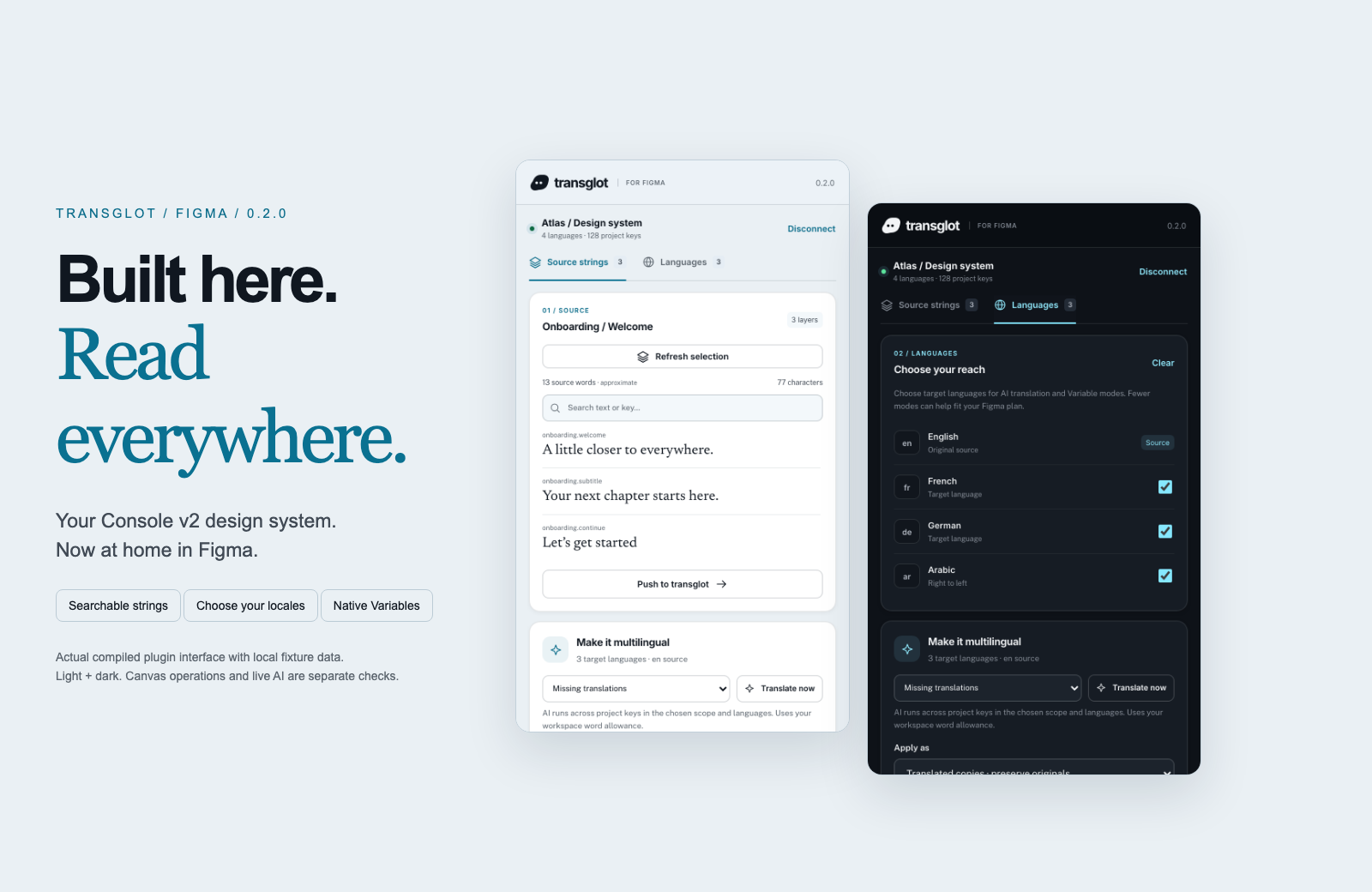
Transglot Figma plugin showing source strings, target languages, and localized design previews
Collect source strings, pull target locales, and inspect translated designs in the Transglot Figma plugin.
ワークフロー

コンテンツを接続。すべての言語を確認。

一度接続してコンテンツと言語を選択し、同じプロジェクト内で翻訳と確認を行います。以下の手順で、お使いのツールでの動作を確認できます。

  1. Collect the text layers

    Select a frame or text layers and collect the strings you want to localize.

    collect
  2. Push to the project

    Send source text to Transglot with stable keys for the mapped layers.

    プッシュ
  3. Translate and pull

    Translate in your project or start a batch from the plugin, then pull the target locales.

    pull
  4. Review the localized design

    Preview Variable modes, reset the source view, or create translated copies and inspect the layout.

    preview
Apply translations to Variable modes or create translated copies so your team can inspect each locale on the canvas.
対象となる要素

翻訳・配信可能なコンテンツ

デザインテキストを集め、チームで翻訳し、Variable モードや翻訳済みコピーで各ロケールを確認します。
翻訳・配信可能なコンテンツ
サーフェス期待できること
ソースと範囲

選択したテキストレイヤー、Variable モード、および翻訳済みデザインコピー

翻訳後の出力

Apply translations to Variable modes or create translated copies so your team can inspect each locale on the canvas.

注意事項

Variable modes depend on the limits of your Figma plan. Translated copies provide a separate preview workflow. Check fonts and layout after applying a locale.

接続を開始

最初の接続までの数ステップ

以下のツール設定に従い、接続を追加して同期対象を選択し、少量のコンテンツで試してみてください。チームは既存のツールを引き続き使用できます。

必要なもの

プラグインで検証された Transglot プロジェクトアクセストークン.

  • ソースロケールとターゲットロケールが設定されたTransglotプロジェクト
  • チームがファイル間でシークレットをコピーすることなく作業できるよう、接続設定に認証情報を保存してください。
  • ホスト型APIへのアクセスには有料のTransglotプランが必要です。AI翻訳はワークスペースの単語数枠を使用します。
  1. Download and extract the plugin ZIP. In Figma desktop, open Plugins → Development → Import plugin from manifest and select manifest.json.

  2. Create a Transglot project token with push and pull abilities; add manage if you want to start an AI translation batch.

  3. Open the plugin, enter the API URL and token, then test and save the connection.

  4. Collect the selected text layers, push the source, and pull target locales. Apply Variable modes or make translated copies to review the design.

同じプロジェクト、さらなる可能性

ワークフローの残りを接続

ツール間を移動しても、翻訳は1つのプロジェクト内に保持されます。

既存の環境で動作します
41個のコネクタ、すでに構築済み。

ワークフローを持ち込む

あなたのコンテンツ、 あらゆるロケールに対応可能

ツールを接続し、チームで翻訳を行い、レビュー済みのコンテンツを公開しましょう。