콘텐츠로 이동

선택적 분석, 세션 기록 및 광고는 동의하지 않으면 비활성화됩니다. 이를 거부하고 Transglot을 사용할 수 있습니다. 쿠키 설정에서 언제든지 선택을 변경할 수 있습니다. 쿠키 정책

모든 통합
사양서 · 코드 및 디자인

Figma and Transglot, see every locale in your design.

Install the development plugin and connect your project with a token. Select text to translate, then preview another language in your design without moving copy through spreadsheets.

Text layers → project → design previews
방향
Text layers → project → design previews
요금제
Starter 이상
범위
선택된 텍스트 레이어, Variable 모드 및 번역된 디자인 사본
인증
플러그인에서 검증된 Transglot 프로젝트 액세스 토큰
시작하기
Download the plugin and connect it to your Transglot project.
코드 및 디자인
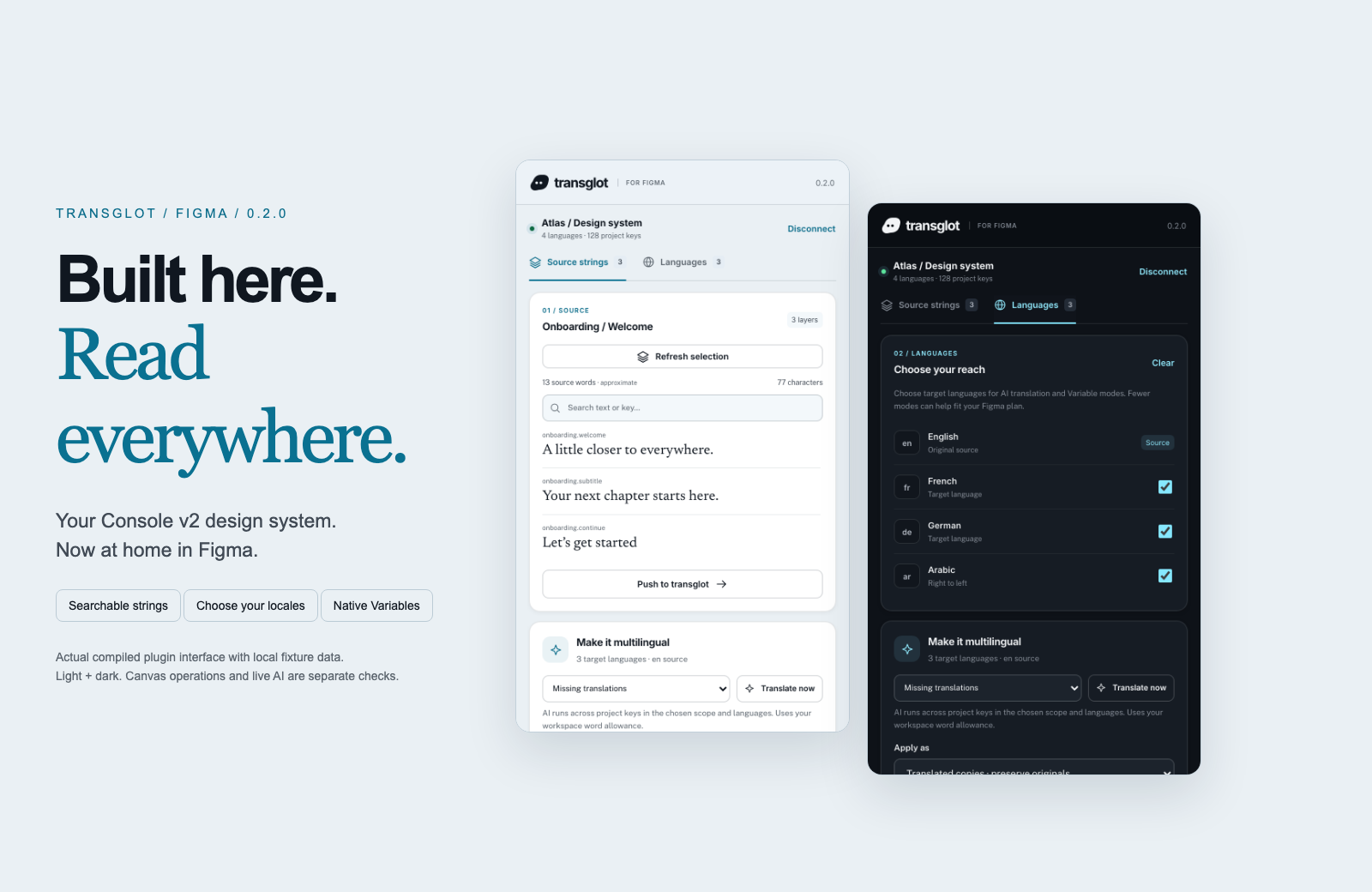
Transglot Figma plugin showing source strings, target languages, and localized design previews
Collect source strings, pull target locales, and inspect translated designs in the Transglot Figma plugin.
워크플로

콘텐츠를 연결하고 모든 언어를 검토하세요.

한 번 연결하여 콘텐츠와 언어를 선택한 후, 동일한 프로젝트에서 번역 및 검토를 진행하세요. 아래 단계는 해당 도구가 어떻게 작동하는지 보여줍니다.

  1. Collect the text layers

    Select a frame or text layers and collect the strings you want to localize.

    collect
  2. Push to the project

    Send source text to Transglot with stable keys for the mapped layers.

    푸시
  3. Translate and pull

    Translate in your project or start a batch from the plugin, then pull the target locales.

    pull
  4. Review the localized design

    Preview Variable modes, reset the source view, or create translated copies and inspect the layout.

    preview
Apply translations to Variable modes or create translated copies so your team can inspect each locale on the canvas.
연동되는 항목

번역 및 전달 가능한 항목

디자인 텍스트를 수집하고 팀과 함께 번역한 후, Variable 모드 또는 번역된 사본으로 각 로케일을 검사하세요.
번역 및 전달 가능한 항목
표면예상 사항
소스 및 범위

선택된 텍스트 레이어, Variable 모드 및 번역된 디자인 사본

번역 결과물

Apply translations to Variable modes or create translated copies so your team can inspect each locale on the canvas.

주의 사항

Variable modes depend on the limits of your Figma plan. Translated copies provide a separate preview workflow. Check fonts and layout after applying a locale.

연결 시작하기

첫 번째 연결을 위한 몇 가지 단계

아래 도구의 설정을 따르세요: 연결을 추가하고 동기화할 항목을 선택한 후 소량의 콘텐츠로 테스트해 보세요. 팀은 기존에 사용하던 도구에서 계속 작업할 수 있습니다.

필요한 항목

플러그인에서 검증된 Transglot 프로젝트 액세스 토큰.

  • 소스 및 대상 로케일이 구성된 Transglot 프로젝트
  • 팀이 파일 간에 시크릿을 복사하지 않고 작업할 수 있도록 연결 설정에 자격 증명을 저장하세요.
  • 호스팅된 API 액세스에는 유료 Transglot 플랜이 필요합니다. AI 번역은 워크스페이스의 단어 허용량을 사용합니다.
  1. Download and extract the plugin ZIP. In Figma desktop, open Plugins → Development → Import plugin from manifest and select manifest.json.

  2. Create a Transglot project token with push and pull abilities; add manage if you want to start an AI translation batch.

  3. Open the plugin, enter the API URL and token, then test and save the connection.

  4. Collect the selected text layers, push the source, and pull target locales. Apply Variable modes or make translated copies to review the design.

동일한 프로젝트, 더 많은 가능성

나머지 워크플로를 연결하세요.

도구 간 이동 시에도 번역 내용은 한 프로젝트에 유지됩니다.

이미 운영 중인 서비스와 연동
41개의 커넥터, 이미 구축 완료.

워크플로 통합하기

귀하의 콘텐츠, 모든 로케일에 준비 완료.

도구를 연결하고, 팀과 함께 번역하며, 검토된 콘텐츠를 게시하세요.